How to Transfer Everything to a New iPhone (Step-by-Step)
Moving to a new iPhone? Here's how to transfer apps, photos, messages, and settings using Quick Start, iCloud, or a computer, plus a checklist so nothing gets left behind.
This post contains affiliate links. As an Amazon Associate I earn from qualifying purchases. Affiliate disclosure.
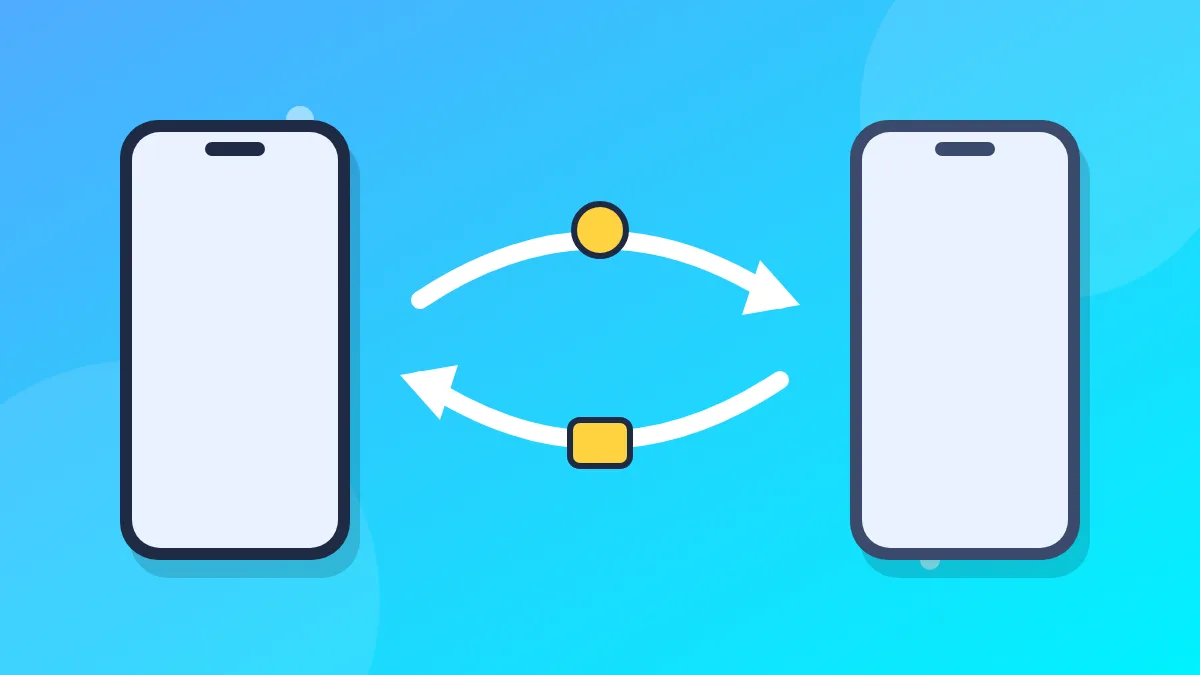
Getting a new iPhone is exciting, but moving everything over can feel intimidating. Apple gives you three main ways to do it: Quick Start (phone to phone), an iCloud backup, or a computer backup. This guide explains each one and helps you pick the right method.
Before you start: a quick prep checklist
- Update your old iPhone. Go to Settings > General > Software Update. Having both phones on recent iOS versions avoids hiccups.
- Know your Apple Account password. You'll need it on the new phone.
- Charge both phones, or keep them plugged in during the transfer.
- Connect to Wi-Fi. A strong, stable connection makes everything faster.
- Check two-factor authentication. Make sure you can still receive codes on a trusted device or phone number.
- Note your authenticator apps. Some two-factor apps don't transfer codes automatically. Check each app's export or transfer option before wiping the old phone.
Method 1: Quick Start (the easiest option)
Quick Start transfers data directly from your old iPhone to the new one, wirelessly.
- Turn on your new iPhone and place it next to your old one.
- On the old iPhone, a Set Up New iPhone card should appear. Tap Continue.
- An animation appears on the new iPhone. Hold your old iPhone over it so the animation is centered in the camera viewfinder.
- Enter your old iPhone's passcode on the new iPhone.
- Set up Face ID or Touch ID.
- When asked how to transfer your data, choose Transfer from iPhone.
- Keep the phones close together and plugged in until the transfer finishes.
The time it takes depends on how much data you have. It can range from a few minutes to over an hour.
Method 2: Restore from an iCloud backup
This is a good choice if your old phone isn't with you, or if you prefer not to keep both phones side by side.
Make a fresh backup on your old phone
- Go to Settings, tap your name, then iCloud > iCloud Backup.
- Make sure Back Up This iPhone is on.
- Tap Back Up Now and wait for it to finish.
Restore on your new phone
- Turn on your new iPhone and follow the setup screens.
- When you reach the transfer screen, choose From iCloud Backup.
- Sign in with your Apple Account.
- Pick the most recent backup.
- Stay on Wi-Fi until the restore completes. Apps and photos may keep downloading in the background afterward.
Method 3: Transfer with a computer
A computer backup doesn't depend on iCloud storage and can be faster for big libraries.
On a Mac
- Connect your old iPhone with a cable.
- Open Finder and select your iPhone in the sidebar.
- Check Encrypt local backup so your passwords, Health data, and Wi-Fi settings are included. Choose a password you'll remember.
- Click Back Up Now.
On Windows
- Install the Apple Devices app (or iTunes on older setups) from the Microsoft Store.
- Connect your iPhone and follow the same steps to make an encrypted backup.
Restore on the new iPhone
- Start setting up the new iPhone.
- On the transfer screen, choose From Mac or PC.
- Connect it to the computer and select the backup you just made.
Which method should you choose?
- Quick Start: Best for most people with both phones in hand.
- iCloud: Best if you already have enough iCloud storage, or your old phone isn't available.
- Computer: Best for very large libraries or limited iCloud storage.
After the transfer: things to double-check
- Sign in to apps. Banking and some secure apps require you to log in again.
- Wallet cards. You'll usually need to re-add your cards in the Wallet app.
- Apple Watch. If you have one, follow Apple's prompts to pair it with your new iPhone.
- Messages and photos. Open both apps to confirm everything's there. Some items may finish downloading over time.
- Mobile service. Most newer iPhones use eSIM. Your carrier setup may transfer during Quick Start, or you may need to contact your carrier.
Protect your new iPhone
Brand-new phones are at their shiniest the day you get them. A case and screen protector are inexpensive insurance against drops and scratches.
What to do with your old iPhone
Before selling, trading in, or giving away your old iPhone:
- Make sure everything is on your new phone.
- If you have an Apple Watch paired to the old phone, unpair it.
- Go to Settings > General > Transfer or Reset iPhone > Erase All Content and Settings.
- Enter your Apple Account password to turn off Find My and remove Activation Lock.
That's it. With a little prep, moving to a new iPhone is usually painless, and you'll be up and running with all your apps, photos, and messages right where you left them.